How to Easily Update Your AirPods: A Step-by-Step Guide
Understanding AirPods Updates
Keeping your AirPods up to date ensures that you benefit from the latest features, performance improvements, and bug fixes. Software updates for AirPods are crucial for maintaining compatibility with your devices and enhancing audio quality. In this article, we will guide you on how to trigger software updates for your AirPods easily.
Preparing for the Update
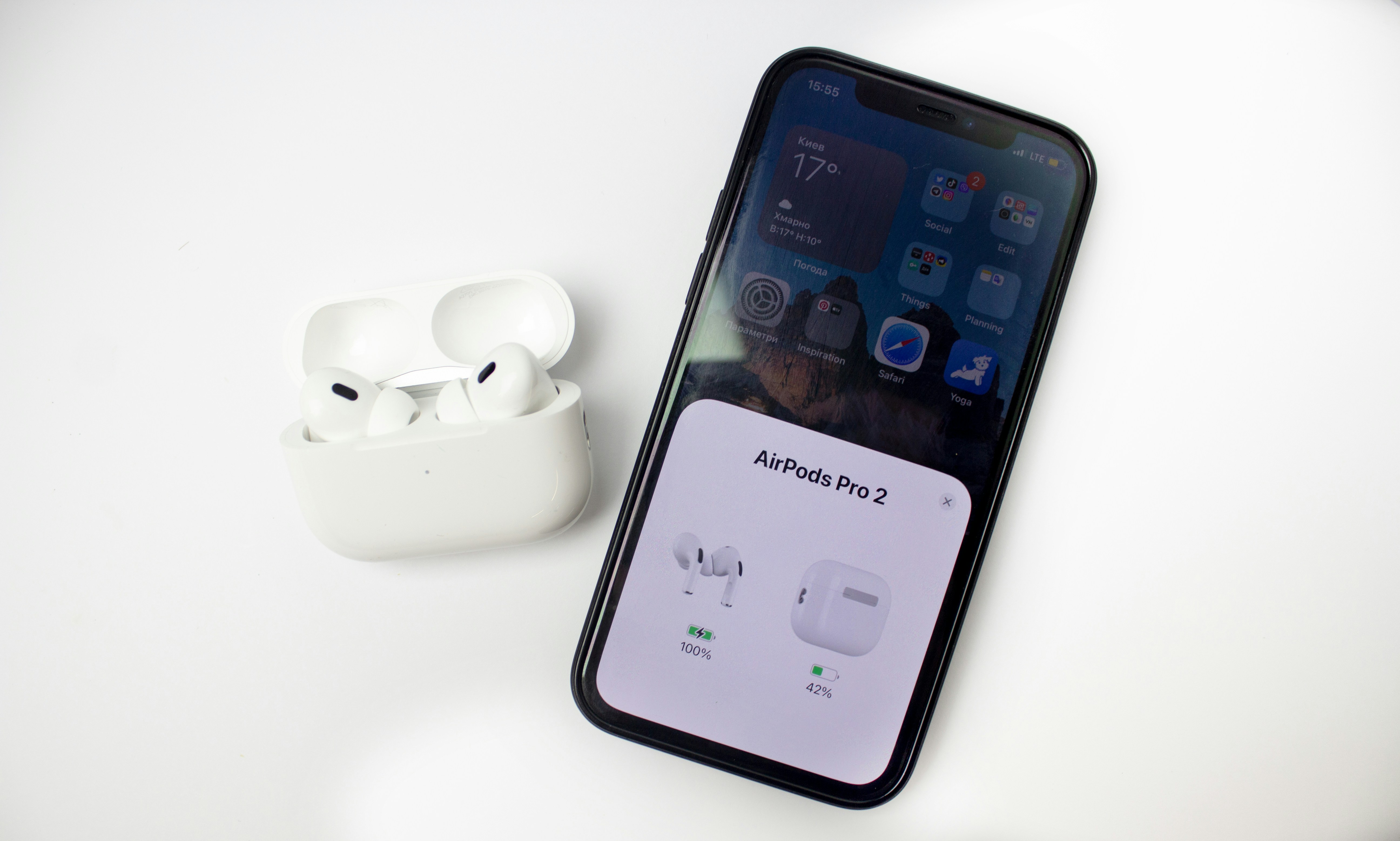
Before initiating the update, ensure that your AirPods are connected to your device. Place your AirPods in their charging case and keep the lid open. Additionally, make sure that your iPhone, iPad, or other connected devices are updated to the latest iOS version. Connecting your device to Wi-Fi is also essential for a smooth update process.
Triggering the Software Update
To trigger an update for your AirPods, simply follow these steps:
- Ensure that your AirPods are charging in their case.
- Keep your iPhone or iPad close to the AirPods.
- Head to the Bluetooth settings on your device.
- Select your AirPods from the list of devices.
- If an update is available, your device will automatically prompt you to install it.
By keeping your AirPods updated, you ensure that they function optimally, delivering the best audio experience possible. Regularly check for updates to make the most out of your AirPods!